• About Me
  • Contact Me

Frugal Living

Indulging in life, financially responsible

DIY

2 Upgrades to Make Your Computer Like New

March 31, 2015 by Andrew Leave a Comment

Is your computer feeling sluggish?  Are you contemplating getting a new one?  If so, there is likely a cheaper option to make your computer run like new again.  The cheapest option is to simply do a clean installation of the operating system (Windows 7 or Mac OS 10.10).  Nine times out of ten, this free (albeit slightly time consuming) chore can make a noticeable difference in how your computer runs.  You’ll need to backup your data first to a spare hard drive before starting.

What if you have already done that, or are certain that the hardware is just getting too old.  We use an early 2009 Mac Mini as our home theater pc (htpc).  It mostly just runs Netflix and Shae uses it for email and web browsing as well.  Instead of buying a completely new computer, we just upgraded two components.

RAM

RAM, or random access memory, has long been one of the most recommended upgrades to breath fresh life into an aging computer.  Adding more RAM is like adding more cabinets and counter space in your kitchen.  RAM is storage for what your computer is actively working on and by having more RAM available to it the computer doesn’t have to run across town to the store every time it needs something.

Most modern computers ship with at least 4 GB (gigabytes) of RAM.  Older computers might only have half that amount of RAM.  We bought two new RAM modules that add up to a total of 8 GB of ram (about $60).

SSD

A solid state drive, or SSD, is a relatively new upgrade that will likely make a larger splash in perceived snappiness when upgrading a computer.  SSDs store your photos, music, applications, and everything else on your computer.  In Windows, it would be the C drive.  In Macs it would be the Hard drive on your desktop.

Older computers shipped with platter based hard drives, meaning that there was a spinning disk that would rotate at 5400 rpm or 7200 rpm.  These hard drives had a lot of storage space for the price and it isn’t uncommon to have a 500 GB or a 1 TB (1 Terabyte = 1000 Gigabytes) of storage.  The downside is that they are sloooow and more likely to fail resulting in you losing all of your photos, music, documents, etc.

SSDs have come down in price and I was able to pick up a 250 GB SSD for about $90.

Upgrading

The very first step in upgrading is to backup your current hard drive.  I use a Mac only tool called Carbon Copy Cloner.  It creates a complete copy of your hard drive that is bootable.
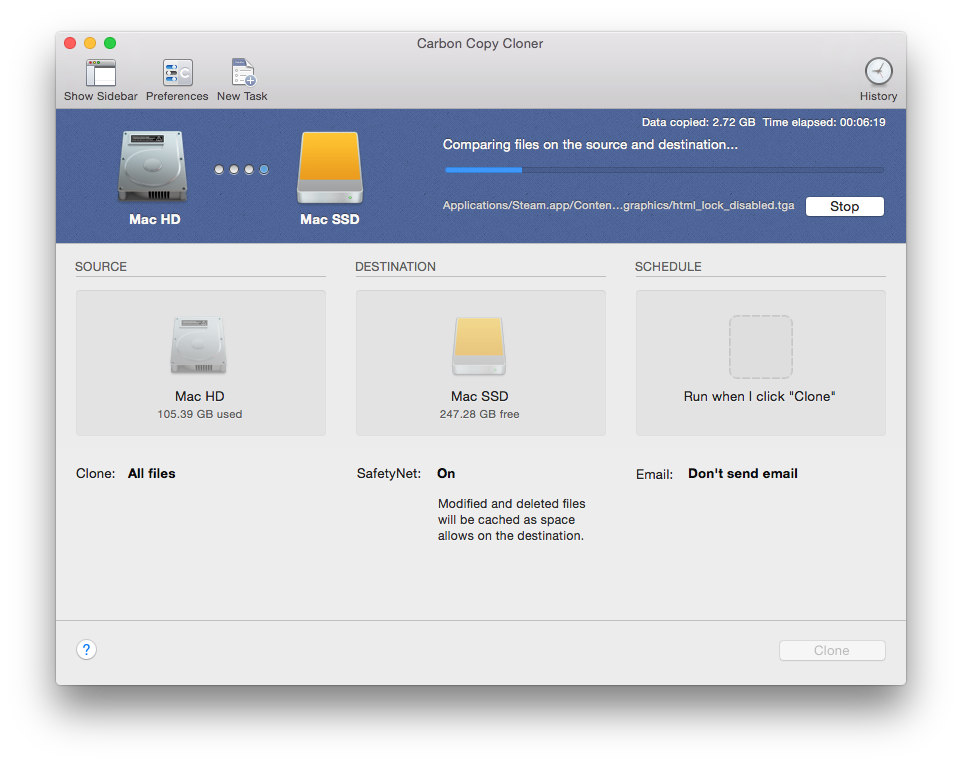
Screen Shot 2015-03-31 at 7.21.43 AM


Depending on how much data you have to backup, this step can take several hours.  I used a small external USB enclosure to house the new SSD so I could connect it to the Mini.

IMG_6162

Once you have cloned your old hard drive onto the new replacement SSD you can power down your computer and unplug everything from it.  You should use a good clean, static free workspace to do the upgrade.
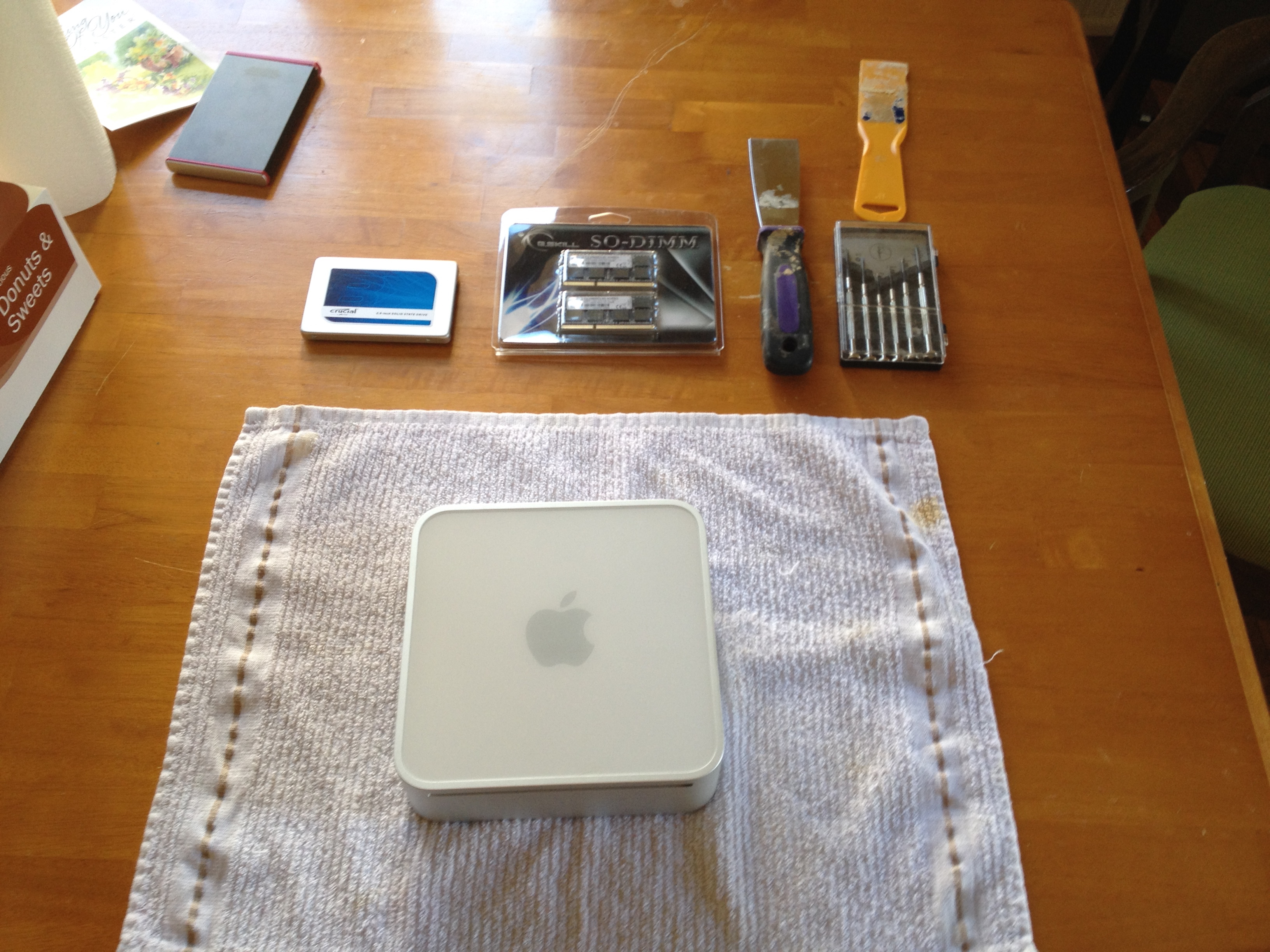
IMG_6166

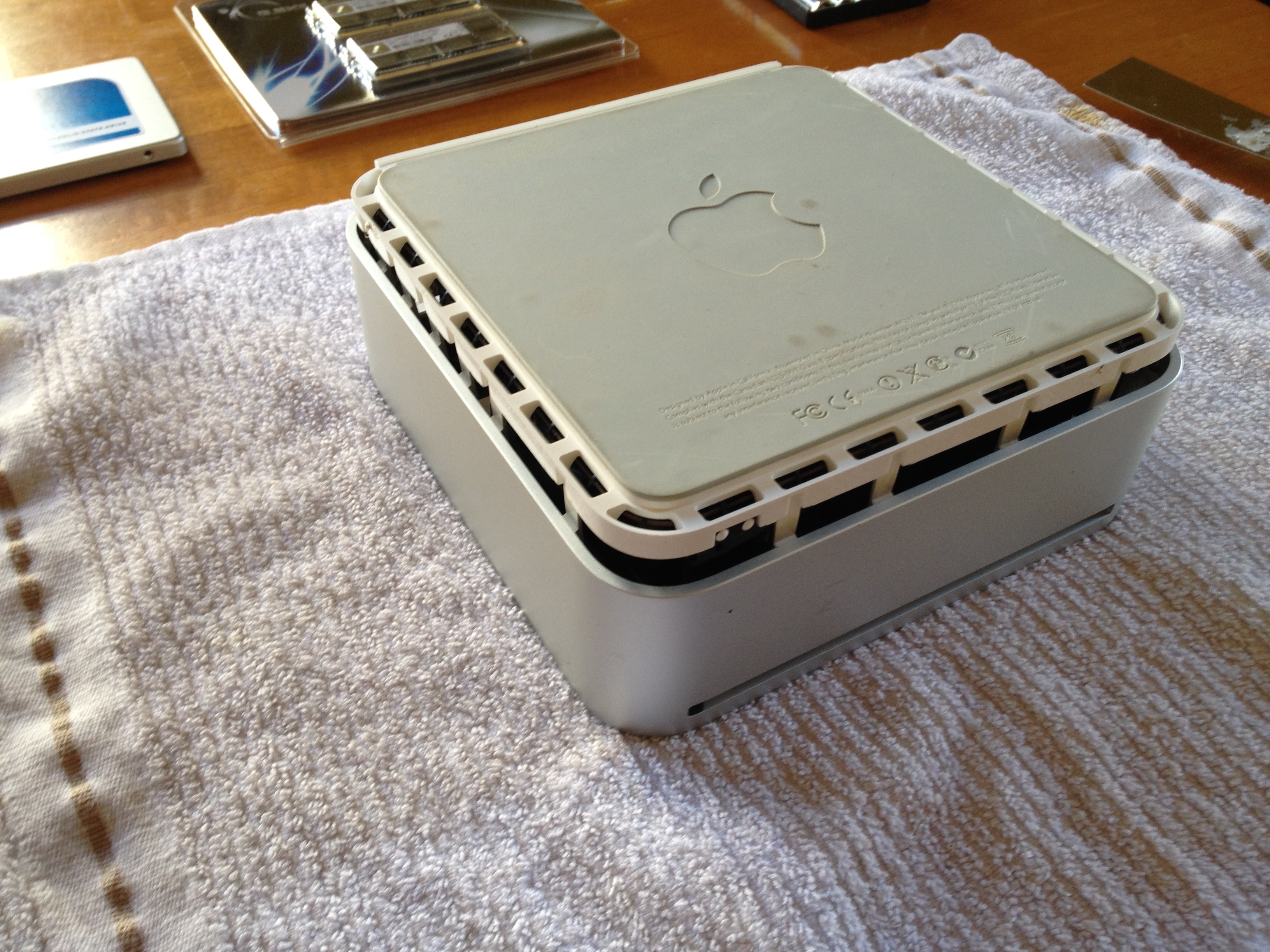
Flipping the mini upside down and using a putty knife opens up the case.  Some computers are much easier and some are harder (especially laptops).
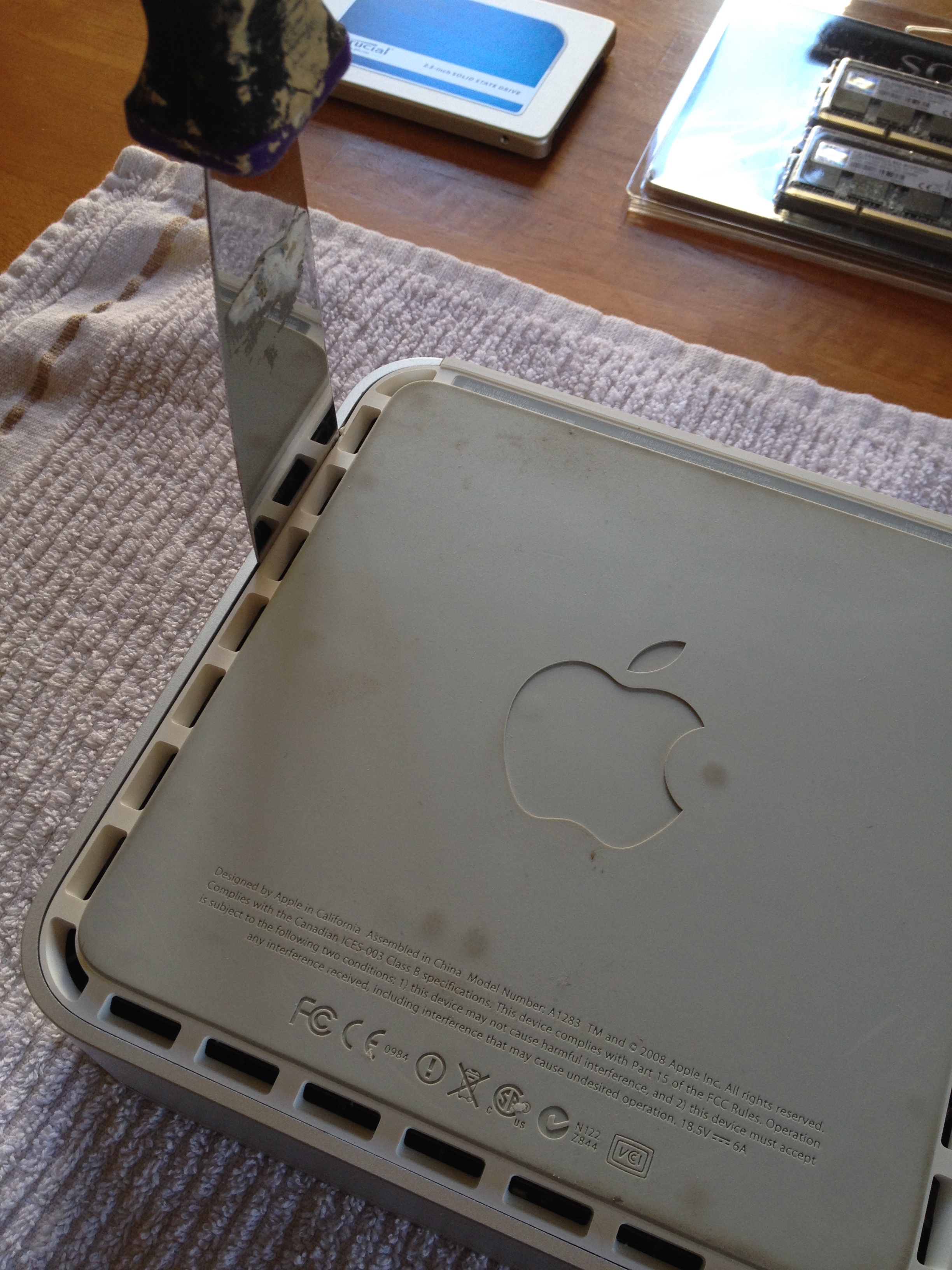
IMG_6167


The case eventually pops off.

IMG_6168

IMG_6169

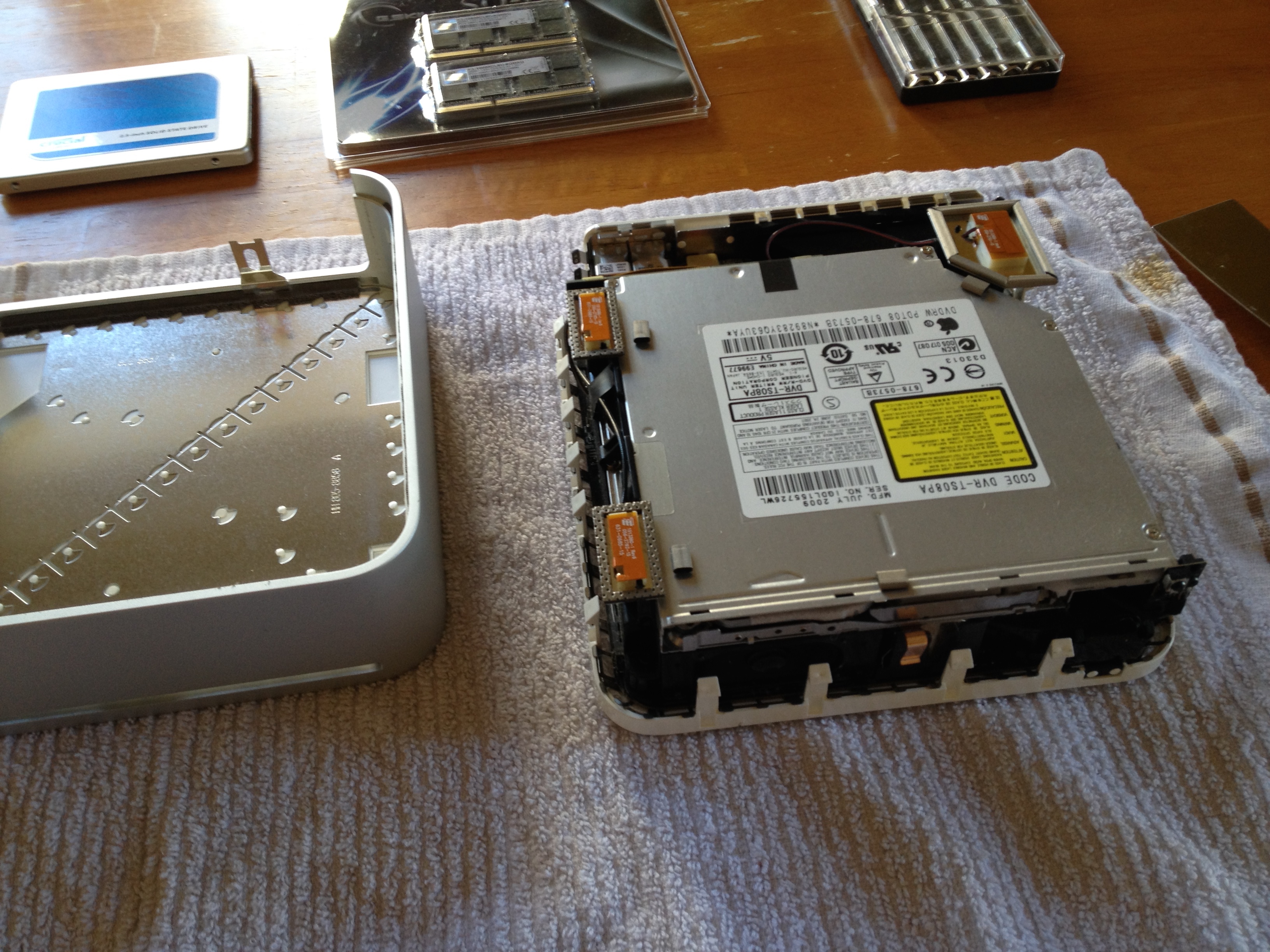
At this point, I need to unhook the three orange antennas and remove the drive bay assembly (silver thing).

With the drive bay unscrewed and unplugged from the motherboard I can remove it and expose the RAM modules.

IMG_6170

This particular model has two ram slots.  I removed each 2GB stick and replaced it with a 4GB stick (4GB -> 8GB).

IMG_6172With the RAM replaced, it was time to do the slightly trickier hard drive replacement.  Flipping the drive bay assembly upside down reveals the original 5400 RPM 120 GB hard drive.

IMG_6173


There were four screws to remove, some anti-static bumpers, and a temperature sensor.  Here are the two hard drives side by side.

IMG_6174

Older computers, like ours may not be able to fully utilize the speed of new SSD hard drives.  Our Mac Mini uses SATA II technology, but the SSD replacement drive is capable of SATA III.  A long discussion about whether or not that matters can be found here.  The short answer is that even older computers will still benefit greatly from a SSD upgrade.

The rest of the upgrade procedure is mostly in reverse and just a matter of putting everything back together again.

IMG_6175


I have worked on this style of Mac Mini before so I knew my way around pretty well.  With that said, I still consulted with a few youtube videos just to double check my work.

In Summary

Upgrading your RAM to 4 or 8 GB and replacing your old disk platter hard drive with an SSD are two easy and relatively cheap upgrades that will keep your computer running briskly for several more years.  I spent more time writing this blog post than actually doing the work (if you don’t count waiting for the backup to complete).  The total cost was about $150 which is significantly less than the cost of a new computer.  RAM was doubled from 4GB to 8GB and the hard drive capacity also doubled from 120GB to 250GB.  The new SSD is also significantly faster than the old hard drive and that makes the computer boot up faster, apps open quicker, and files copy in a fraction of the time.

Some computers (especially laptops) do not have user upgradeable RAM or hard drives.  Apple is particularly guilty of soldering in RAM modules so that they are not user replaceable.  Do a quick internet search for your make and model to see what is upgradeable and the complexity of those upgrades.  I am predicting that desktop and laptop computers will soon be like VCRs of old where it is cheaper to buy a new unit than to repair an old one.  Until that day though enjoy tinkering around circuit boards!


Posted in: DIY, Technology Tagged: Hard Drive, RAM, SSD

Tax Season

March 17, 2015 by Andrew Leave a Comment

Yesterday I mailed off our federal and state tax returns.  2014 was a good year for us, both in income and reducing our tax burden.  Reducing the amount of taxes that you pay is in my opinion, the best way to increase savings.  You don’t have to work any harder (more hours, second job, etc.) and you don’t have to decrease your spending (i.e. being frugal).

Our marginal tax bracket was 25%, but by contributing to tax advantaged retirement accounts, like a 401k, we were able to drop down into the 15% marginal tax bracket.

Our effective tax rate, what percentage of our income we actually had to pay after all of the deductions and credits was 10.96%.  In other words, we had to earn $1.12 in order to spend $1.  You can figure your own effective tax rate by dividing your total tax (line 63 of form 1040) by your total income (line 22 of form 1040).

The following chart from 2010 shows effective tax rates (AGI instead of net income) grouped according to the income earned.  Our rate is high for our income because it includes the self employment tax (social security and medicaid that is normally paid by your employer).  If we fiddled with our numbers and took out the self employment tax and used adjusted gross income instead of net, our rate would be 6.2%

Screen Shot 2015-03-17 at 1.02.43 PM


All in all, I feel like we are successfully managing our tax burden.

Some other points of interest

Our effective rate dropped about 1% point from 2013, thanks largely in part to Frugal Boy.  The extra deductions and credits that come with having a dependent make a sizable difference in your tax bill.

Here are some previous blog posts about reducing one’s tax burden:

  1. Saving for College – This helped save us money on our state taxes
  2. Harvest Time – Discusses how to optimize the selling of stocks to minimize capital gains
  3. Childcare FSA vs Tax Credit – Explains how to make dependent care more affordable for dual income families

Last year’s post about this topic can be found here.

Posted in: DIY Tagged: Taxes, tips

DIY Brake Service

March 14, 2015 by Andrew 1 Comment

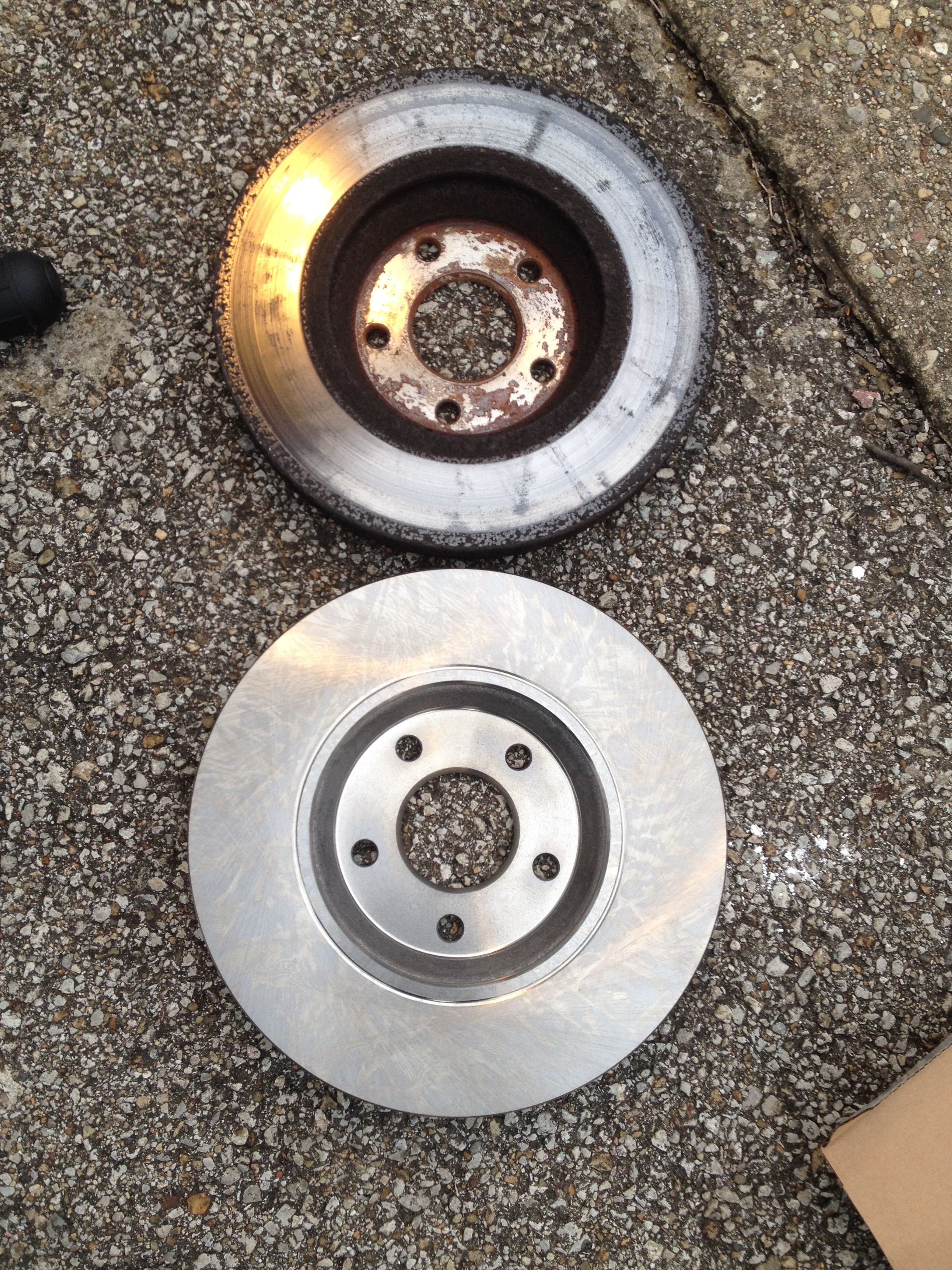
Back in November I took our car into the mechanics shop to have a nail removed from a tire.  As usual, the mechanic does a quick inspection of the major systems and he made a few remarks about the amount of corrosion on the brake rotors.  The brake pads had plenty of life left in them, but the rotors had some deep grooves and a lot of rust.  The car was still stopping fine, so I declined any work and made a mental note to do something about it myself when Spring came.

It sure did feel like Spring today, and knowing that the weather was going to be good this weekend I had planned ahead and ordered some parts from RockAuto.com, my new favorite car parts supplier.

AutospecialtyFrontRearKit

New rotors and pads for the front and back set us back about $150.  Not a bad deal if you ask me.  I was also wanting to change the brake fluid because the service manual said to do that the earlier of 30,000 miles or 24 months.  Seeing as we’ve owned the car since 2009 and have never changed the brake fluid, I figured it was due.

After jacking up the car, securing it with jack stands, and removing the front wheels, I had access to the brake components.

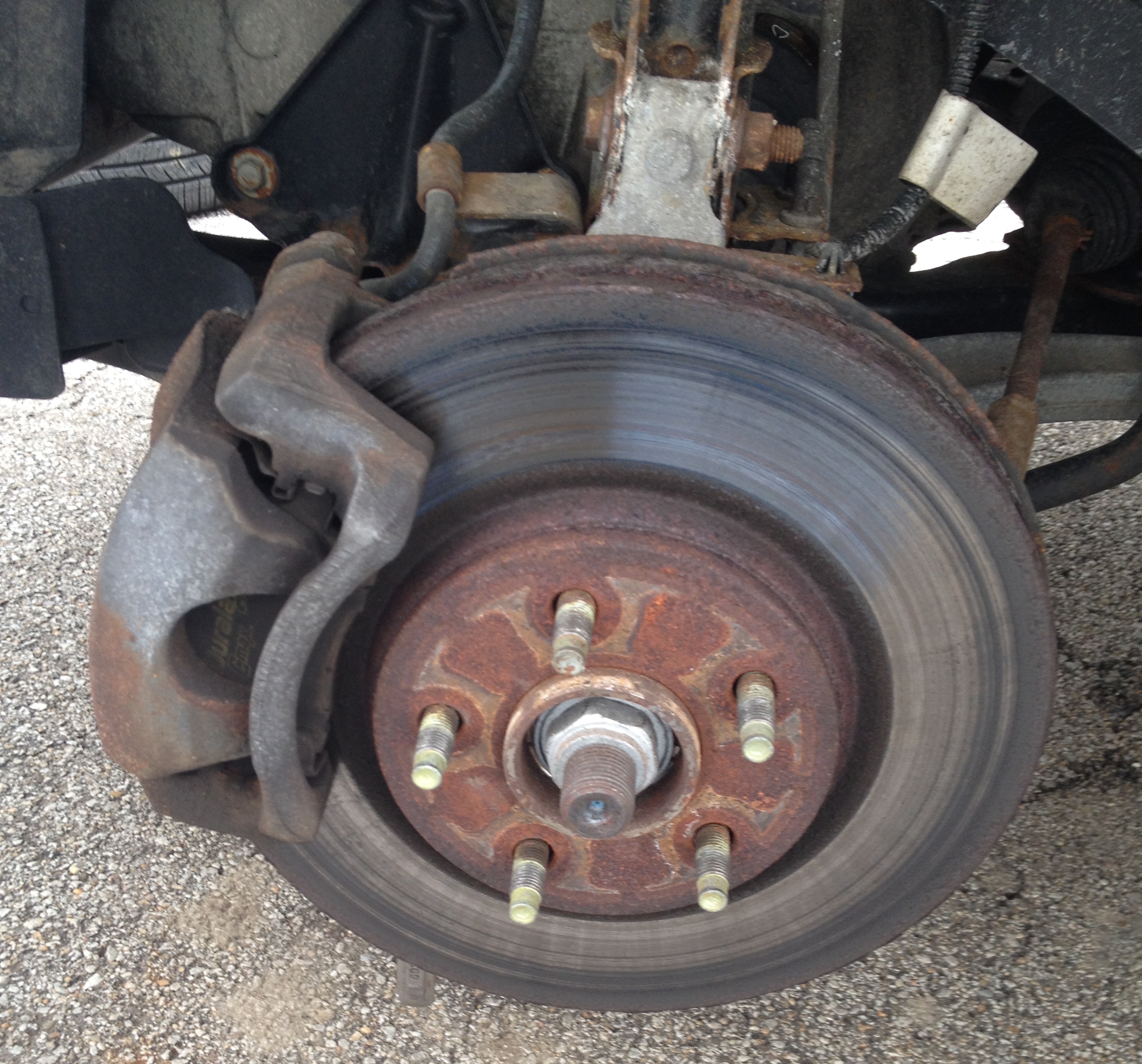
IMG_5993

The large metal platter with the 5 bolts sticking through it is the brake rotor.  It is gripped by the brake pads to create friction to change the kinetic (moving) energy of the car into heat.  If you ever see a video of race car or airplane brakes getting red hot, it is because they are converting a lot of energy!

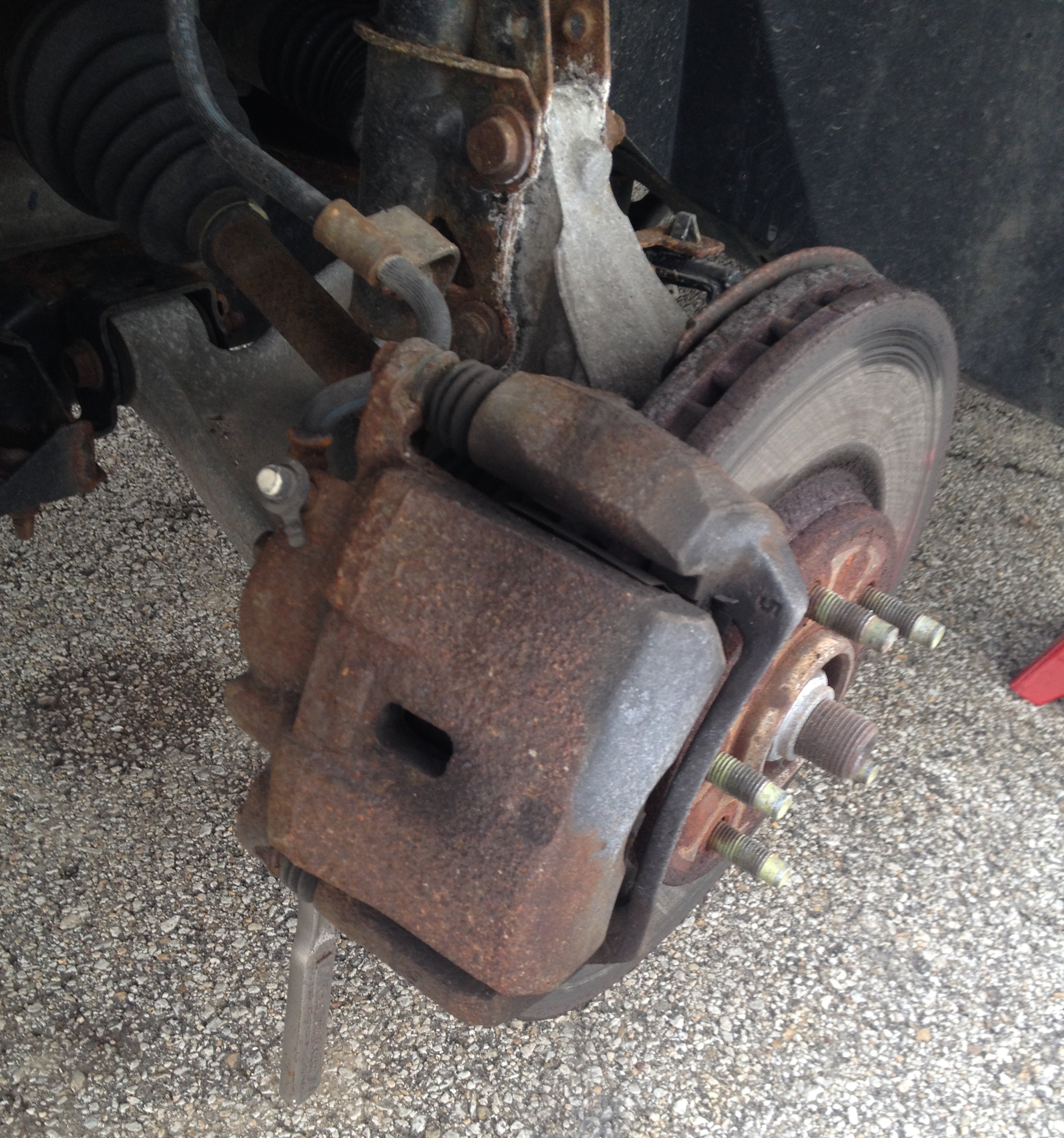
IMG_5994

The brake caliper (shown above) is like a giant hand that holds a pair of brake pads.  When you press on the brake pedal it forces brake fluid through hoses that actuate a piston in the caliper.  That piston is what pushes the pads against the rotor.

IMG_5995

New rotors come with a rust inhibitor coating.  If they didn’t they would be completely rusted over by the time you installed it on your car.  The coating should be cleaned off with some brake cleaner spray before installing.

IMG_5998

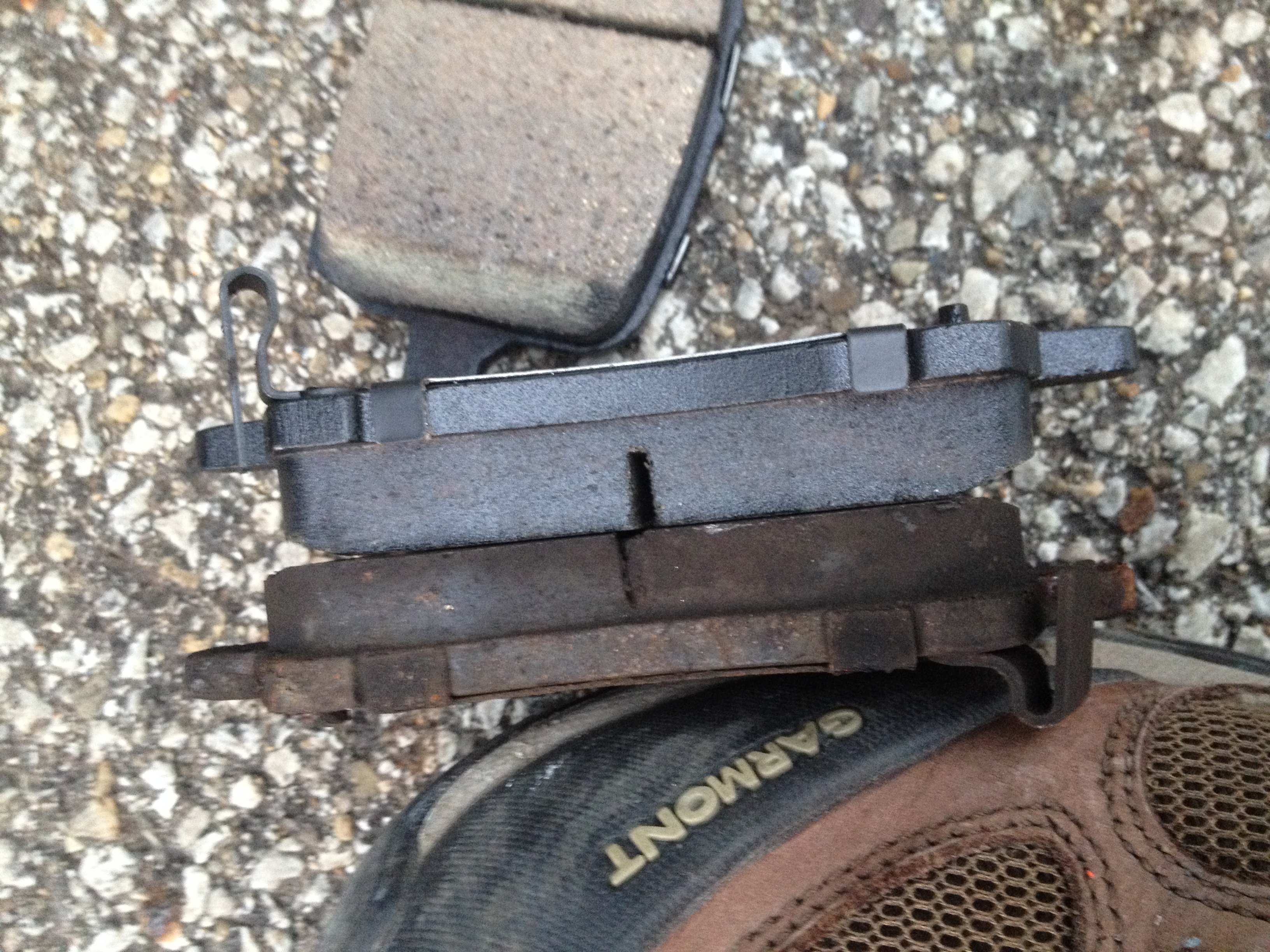
The old brake pad (nearer to my shoe) still has plenty of wear left.  You can see the wear indicators (the metal clip that looks like a J) on both the new and the old pads.  Do you know that horrible screeching sound when your brakes need to be replaced.  That is caused by the wear indicators scraping against the rotor.  It is designed to be loud and get your attention!

IMG_5999

With the new rotor installed it is just a matter of putting everything back together again.  Some parts are designed to be replaced with every brake job, like the little metal retaining brackets shown above.  Also, some parts need to be lubricated.

With everything put back together and the brake lines bled (fluid completely replaced) the last critical step is to pump your brake pedal.  The first couple of times that you push the brake pedal after replacing the brakes, the pedal will go all the way down to the floor!  Once you have a brake pedal again, you can take it for a test drive.

A quick search on the internet revealed some big box store prices.  For instance, Pep Boys offers a brake fluid exchange and ceramic pads for $250/axle.  That does not include new rotors, but the machining of the old ones (they cut off a bit of thickness from your old rotors to save money and in return you are left with an inferior braking component).  My total cost for everything was about $170, so I saved about $330 by doing the work myself.  I spent two hours on Friday night doing the front axle and five hours on Saturday morning doing the rear axle and exchanging the fluid.  $47/hour is worth it to me.

I skipped a lot of steps in this blog post, including important ones.  If you want to know more about the details, I find that Eric the Car Guy has a great set of video tutorials online that you can follow.

Posted in: DIY Tagged: Car

Making Yogurt

March 11, 2015 by Shae Leave a Comment

We’re always looking for ways to save money, especially on things we use/buy regularly. You may remember our foray into making our own breakfast sandwiches. While not very big on cost savings when you factor in the time to make them, it does offer the opportunity to expand into variations other than the 3 flavors offered at Aldi.

Another food product we eat like it’s going out of style is yogurt. When we were starting out our lives post-college we went only for the cheapest yogurt we could get. At 33 cents for a 6 oz cup the Aldi & Kroger generic brands ruled the refrigerator. Then we started looking at the nutrition labels. The generic cups of yogurts, regardless of flavor, all had about 36 grams of sugar. We did the math:

4 grams of sugar = 1 teaspoon of sugar

36 grams of sugar = 9 teaspoons of sugar

9 teaspoons of sugar = 3 tablespoons of sugar

3 tablespoons of sugar in just one small container of yogurt. Yikes!  Now granted some (not much) of the sugar comes from the milk, but companies tend to make up for lack of fat (flavor) in products by adding sugar. It’s very difficult to find full fat or low sugar yogurts without spending over a dollar per 6oz cup. Not very frugal when you’re on a limited budget.

After that realization we coughed up a little extra money for the name-brand regular yogurt at about 50-70  cents a cup. The sugar content was reduced but not by much (24-26 grams or 2 tablespoons).

About a year ago we started on the Greek yogurts and bought tubs instead of individual cups when it made sense (coupons make the pre-portioned cups a better deal). The plain Greek yogurt quart tubs cost $3.89 and only have 10-16 grams of sugar. You’re probably thinking why not just get the generic “lite” or “carb master” variety and save yourself the money and have the lower sugar content. That comes to the matter of taste. I can’t stand the aftertaste of artificial sweeteners. Picky, I know.

 Now on to the main point of this post. I was browsing the web the other day and a recipe to make your own yogurt caught my eye. The process was very hands-off and for a little less than the cost of a quart tub you could have almost a gallon of yogurt (4 quarts if you can’t remember your US customary conversions). It only needed 4 things:

  • Slow cooker
  • Thermometer
  • Gallon of milk (the recipes say skim or 2% will work but whole milk is best)
  • 6oz cup of no-sugar/sweetner added, plain yogurt – look for the live and active cultures seal on the label

You begin by pouring your gallon of milk into your slow cooker, put the lid on and turn it to the low heat setting.

IMG_5980

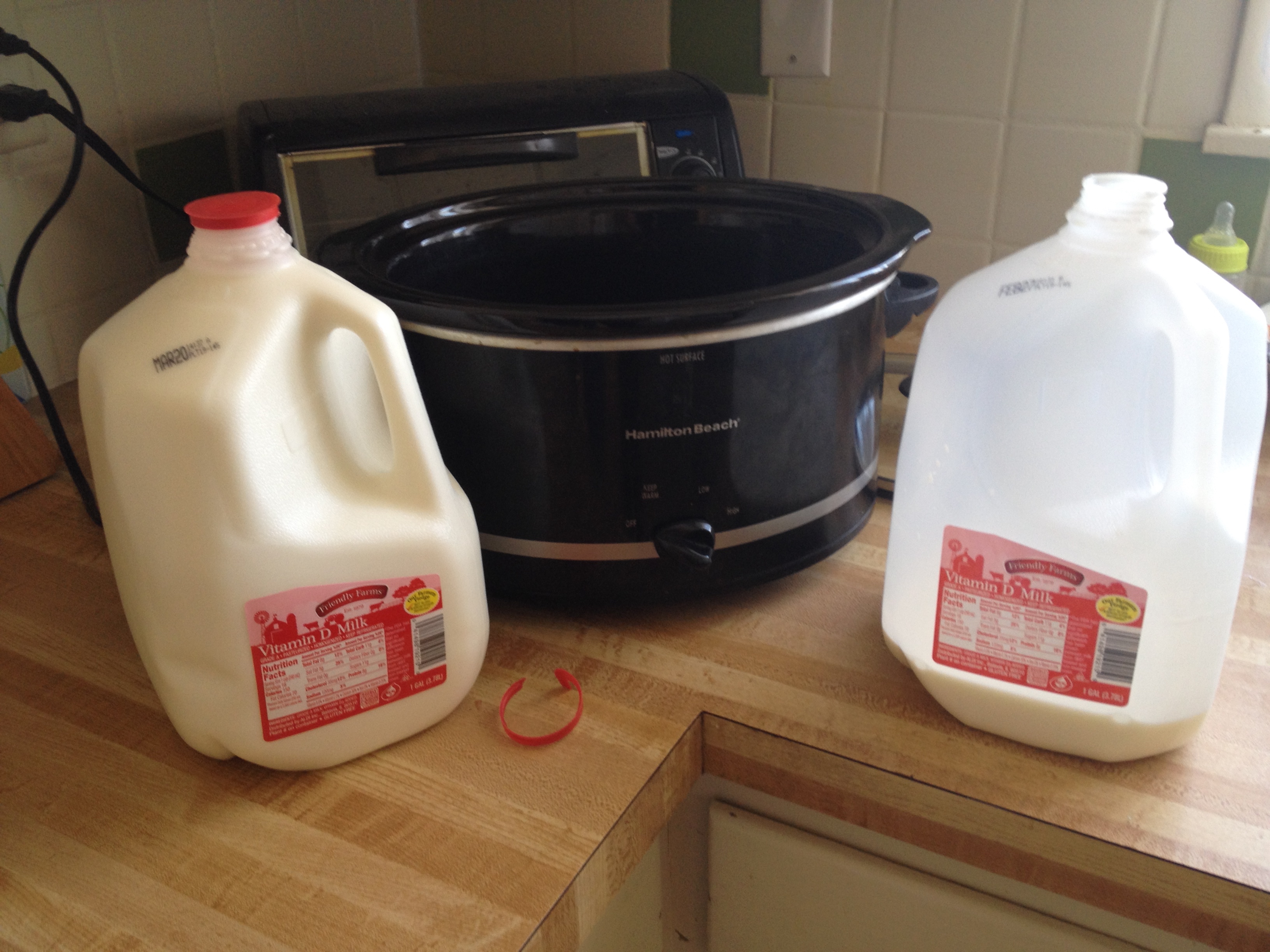
We have a 4 quart slow cooker so we couldn’t quite fit in a whole gallon.

IMG_5981

You want the milk to heat to 180 degrees to kill off any bad bacteria present so the good bacteria from the starter yogurt can grow freely. This is important so use your thermometer to make sure the milk gets hot enough. Depending on the heat output of your slow cooker it can take several hours (ours took about 3 hours).

IMG_5982

Once the milk hits 180, turn off your slow cooker and let it sit with the lid on to cool to 95-115 degrees (another 2-3 hours). This is the ideal temperature for the good bacteria to grow. Take about a cup or so of the still warm milk out of the slow cooker and mix it with your starter yogurt. Pour that milk/yogurt mixture back into the rest of the milk and mix well.

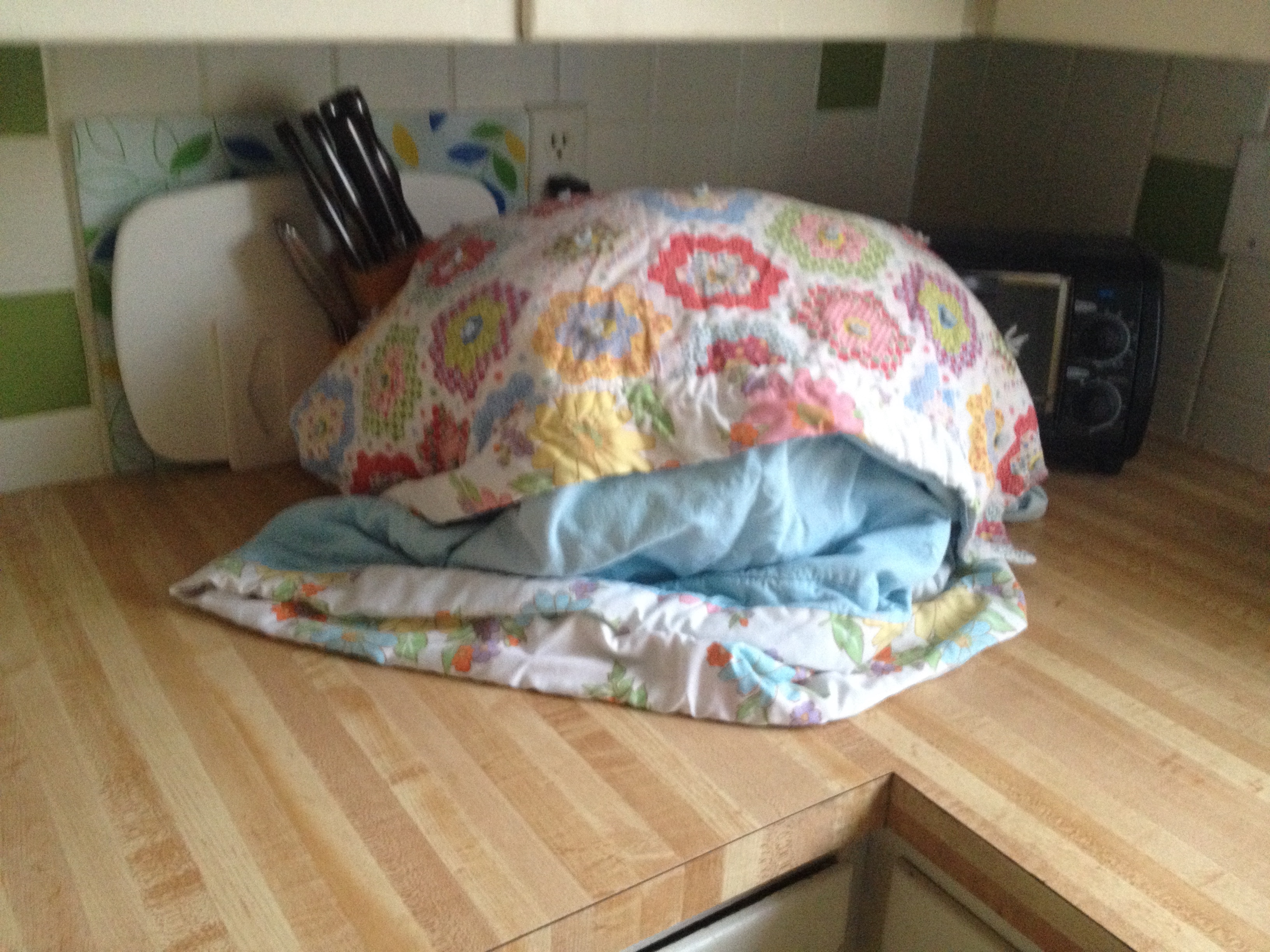
At this point some recipes had you stick the yogurt in a cool oven with the light turned on. Other recipes had you use a thermos or cooler. The goal is to keep the milk at a stable, warm temperature while it ferments. We opted for wrapping the slow cooker in a blanket to insulate.

IMG_5983

Your job is done at this point and the live bacteria from the starter yogurt go to work. The yogurt should sit for 8-12 hours in its cocoon. If you like more sour tasting yogurt let it sit for the 12 hours, for a less tangy yogurt 8 hours should suffice. We let ours sit overnight for about 12 hours. Once the fermenting period is up you can transfer the yogurt to containers and place it in the refrigerator.

IMG_3407

We had about 3 1/2 quarts total of yogurt. About a quart was eaten by the time I remembered to take this picture.

Your homemade yogurt will keep for about 2 weeks (if you don’t eat it all before then). Our total cost was $3.69. $2.69 for the milk and another dollar for the starter yogurt. The next batch will cost even less as we’ll use a cup of yogurt from this batch as the starter. The taste is great, even after 12 hours it wasn’t very sour at all and the whole milk made it very creamy. Even Frugal Boy has been enjoying the yogurt.

Still hasn't gotten the hang of a spoon.

Still hasn’t gotten the hang of a spoon.

Posted in: DIY, Recipes, Savings Tagged: Cooking

Replacing a Turn Signal Bulb

February 20, 2015 by Andrew Leave a Comment

While I was picking up Frugal Boy from the baby sitter the other day I noticed that the turn signal indicator was blinking faster than normal.  That is a good indication that one of the bulbs is burnt out and needs to be replaced.  Sure enough, when I got home I verified that the rear turn signal bulb was no longer working.

A trip to the parts store and $6 later and I had a pair of replacement bulbs.  You should always replace bulbs in pairs.

IMG_5586

While every car is a bit different the steps are probably very similar.  The only tool that I needed was an adjustable wrench.

To make the replacement I first had to pop the trunk so I could get access from the inside.

IMG_5581

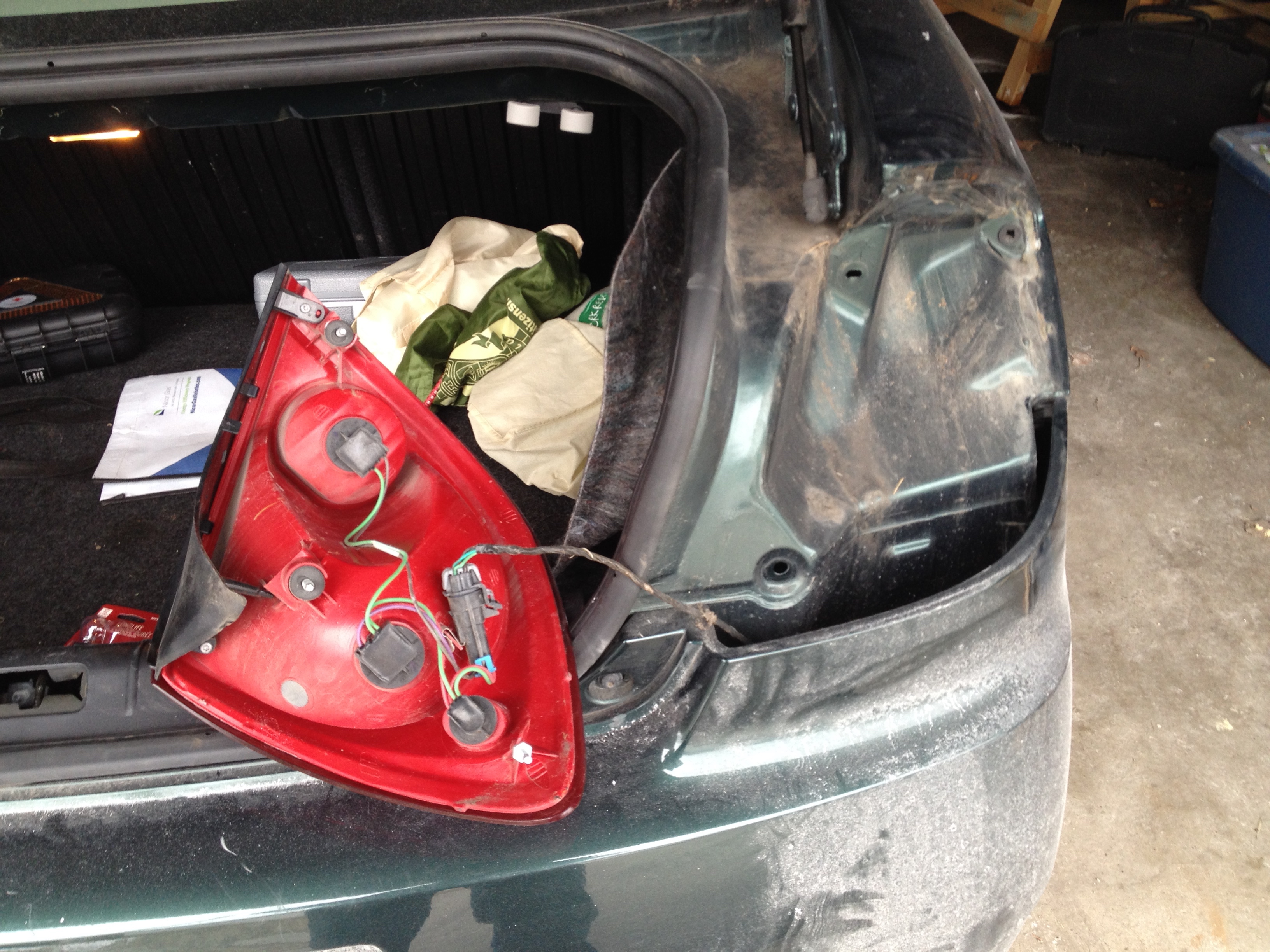
There are two black caps that have to be removed.  They hold the fabric in place.  In the above picture I have already unscrewed the upper cap and the lower cap remains.

Once the caps are off you can pull the fabric away from the chassis of the car.  There was two nuts that I had to unscrew.  I was able to do one by hand and the other was just a bit too tight so I needed the wrench.

IMG_5582

With both bolts undone, the entire tail light assembly should slide out from the exterior of the car like so.

IMG_5587

Somebody had put a little adhesive (maybe the factory?) so I had to put a little muscle into it.

With the tail light assembly dangling by its electrical connections, find and unscrew the bulb mount that you want to replace.  Our car had labels underneath the dirt and grime.

IMG_5588

As you are installing the new bulb, take care not to touch the glass with your hands.  Oily residue from your skin will cause the glass to retain more heat and that will lead to premature failure of the bulb.  Installation is the reverse of taking it all apart.  I like to check that everything works before I fully assemble it all.  You can save the good bulb for later.

Finally, it is a good idea to keep a record of all your car repairs.  Not only is it easy to do with a simple spreadsheet, it also will make resale a bit easier when you can show a history of maintenance to potential buyers.

Car Repair Log

I started logging our repairs last August.  I know we are due for an oil change soon and also brake pads/rotors.  I’m just waiting for the weather to warm up!

Posted in: DIY Tagged: Car, tips
« Previous 1 … 11 12 13 … 17 Next »

Recent Posts

  • Min/Maxing Car Sale for Highest Value and Lowest Headache
  • Buying a Car with Data Driven Decision Making
  • Hot Lunch
  • Baking with Dad
  • Winter Nights

Financial Goals

Recent Comments

  • suwaidi online on Building a New Desktop Computer
  • James Spurr on Building a Self Watering Raised Garden Bed
  • suwaidi online on Total Cost of Ownership – Inkjet vs Laser Printers
  • bcimechanical on Troubleshooting a Gas Furnace
  • g on Troubleshooting a Leaking Whirlpool Dishwasher [UPDATED]

Archives

  • December 2020
  • December 2018
  • July 2018
  • May 2018
  • April 2018
  • March 2018
  • February 2018
  • January 2018
  • December 2017
  • November 2017
  • October 2017
  • September 2017
  • August 2017
  • July 2017
  • June 2017
  • May 2017
  • April 2017
  • March 2017
  • February 2017
  • January 2017
  • December 2016
  • November 2016
  • October 2016
  • September 2016
  • August 2016
  • July 2016
  • June 2016
  • May 2016
  • April 2016
  • March 2016
  • February 2016
  • January 2016
  • December 2015
  • November 2015
  • October 2015
  • September 2015
  • August 2015
  • July 2015
  • June 2015
  • May 2015
  • April 2015
  • March 2015
  • February 2015
  • January 2015
  • December 2014
  • November 2014
  • October 2014
  • September 2014
  • August 2014
  • July 2014
  • June 2014
  • May 2014
  • April 2014
  • March 2014
  • February 2014
  • January 2014
  • December 2013
  • November 2013
  • October 2013
  • September 2013
  • August 2013

Categories

  • Business
  • DIY
  • Finance
  • Frugal Boy
  • Frugal Girl
  • House
  • Misc.
  • Parenting
  • Reading
  • Recipes
  • Savings
  • Technology
  • Travel
  • Uncategorized

Meta

  • Log in
  • Entries feed
  • Comments feed
  • WordPress.org

Copyright © 2026 Frugal Living.

Omega WordPress Theme by ThemeHall